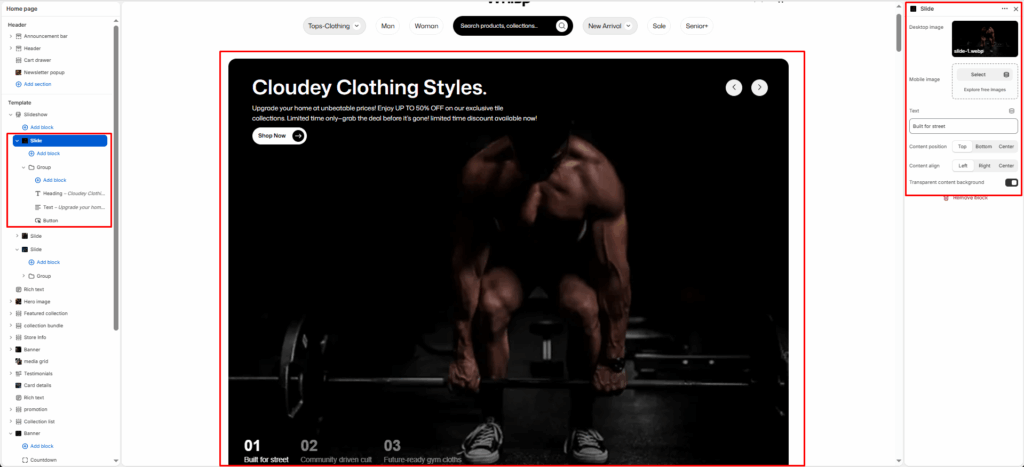
The Slide block is used within the Slideshow section to create individual slides. Each slide can include its own image, text, buttons, and layout options. It’s ideal for showcasing promotions, collections, or brand stories in a visually engaging carousel.
Block Settings
Desktop image
Upload or select an image for desktop devices. This image defines the main visual background of your slide.
Mobile image
Optional. Upload a separate image optimized for mobile screens. If left empty, the desktop image will be used on all devices.
Content position
Choose where the slide content (text, buttons, etc.) is placed vertically:
- Top — Align content to the upper area of the slide.
- Center — Center content vertically (default).
- Bottom — Place content near the bottom edge.
Content align
Set the horizontal alignment of text and elements within the content area:
- Left — Align to the left edge.
- Center — Align to the center (default).
- Right — Align to the right edge.
Transparent content background
Toggle ON to remove the background color behind text and buttons, allowing the slide image to show through.