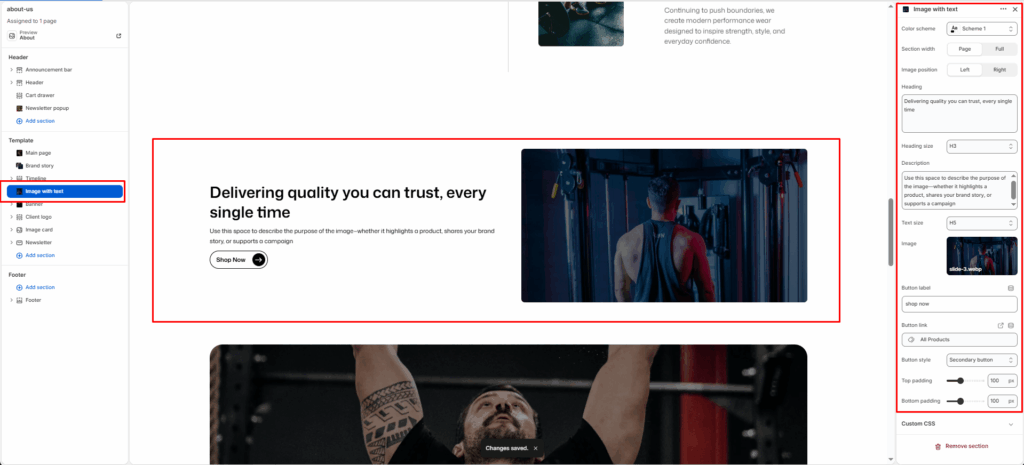
The Image with Text section is designed to pair strong visual storytelling with concise, impactful messaging. It allows you to display an image alongside descriptive text, headings, and call-to-action buttons — perfect for highlighting product features, brand values, or promotional content.
Section Settings
Color scheme
Choose a predefined color palette to match the section with your store’s theme style.
Section Width
- Page: Constrains the content to the theme’s maximum site width.
- Full: Stretches the section to the edges of the browser window.
Image
Upload a background image or decorative graphic that sits behind the primary text.
Label
Enter short, high-visibility text (e.g., “SALE”) to appear in the stylized outline badge.
Heading
Add the main promotional title. This typically appears next to the label.
Heading size
Adjust the scale of the heading from H1 to H6 to establish visual hierarchy.
Description
Enter a detailed paragraph to provide more context about the promotion or offer.
Text size
Control the font size of the description paragraph for better readability.
Button label
Input the text for the action button (e.g., “CHECK NOW”).
Button link
Select the destination page, product, or collection the button should lead to.
Button style
Choose between available button styles. The styles depend on your theme’s design system.
- Button icon
- Primary button
- Secondary button
- Full button
- Link button
- Button with icon
Text Align
Set the alignment of the text and button to left, center, or right.
Top/Bottom Padding
Adjust the vertical spacing (in pixels) to give the section room to breathe.