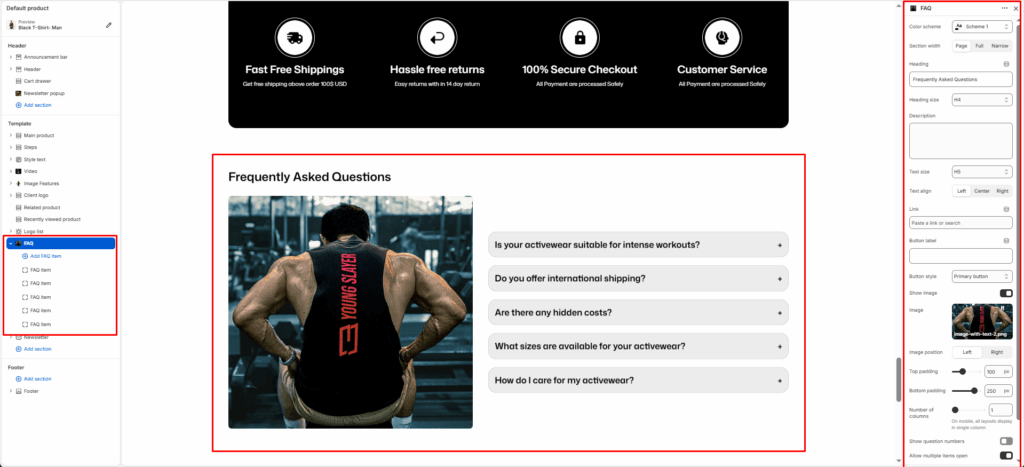
The FAQ Section allows you to display a list of frequently asked questions in an accordion layout. Each FAQ item can expand or collapse to show the answer, helping users find key information quickly. This section is great for support, product details, or brand information.
Section Settings
Color scheme
Select a predefined color style to match your theme’s design.
Section width
Choose how wide the section appears on the page. Options: Page, Full, or Narrow.
Top padding
Adds space above the section content (in pixels).
Bottom padding
Adds space below the section content (in pixels).
Heading
The main section title. Example: “Frequently Asked Questions.”
Heading size
Controls the heading level (H1-H6). Example: H2 for standard page titles.
Description
A short paragraph shown below the heading. Example:
“Find answers to common questions about our products and services.”
Text size
Adjusts the size of the description text (e.g., H6, small, medium).
Text align
Aligns section text to Left, Center, or Right.
Number of columns
Defines how many columns the FAQ items display in (usually 1).
Note: On mobile devices, all layouts display as a single column.
Show question numbers
Toggle ON to display numbered questions (e.g., 01, 02, 03…).
Allow multiple items to be open
When enabled, users can open more than one question at the same time.
Image
Upload the specific image you want to feature as a floating element within the section.
Blocks Settings
FAQ Item
Each block represents a single question and answer.
Question
The question text is displayed in the accordion title.
Example: “What’s your return policy?”
Answer
The text is shown when the accordion expands.
Example: “Step into a world where fashion meets function, and every piece tells a story.”
You can add multiple FAQ Item blocks to create a full list of FAQs.