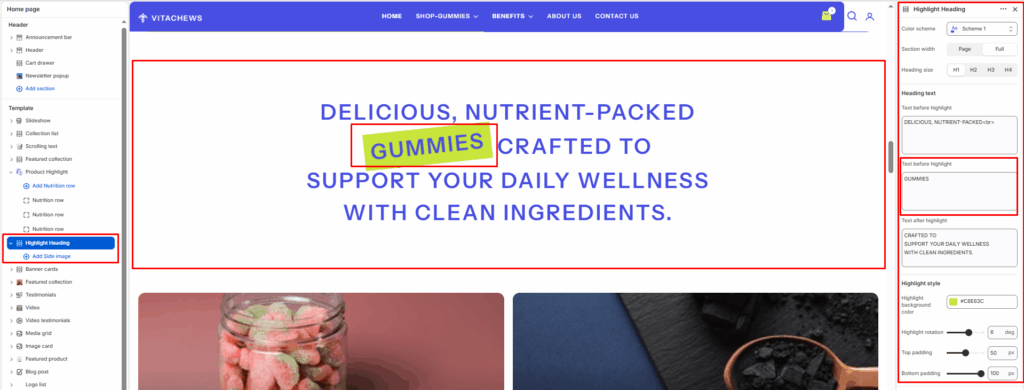
The Highlight Heading section displays a large decorative heading with a highlighted word or phrase — ideal for making a bold visual statement on your homepage or any page.
Section settings
Color scheme
Select your preferred color palette for the background and text.
Section width
- Full: Stretches the section to the edges of the browser window.
- Page: Constrains the content to the theme’s maximum site width.
Heading size
Select the size of the heading text — H1, H2, H3, or H4.
Heading text
Text before highlight
Enter the text that appears before the highlighted word (e.g., DELICIOUS).
Highlight word
Enter the word or phrase to display with the highlight background effect (e.g., GUMMIES).
Text after highlight
Enter the text that appears after the highlighted word.
Highlight background color
Select the background color applied behind the highlighted word (e.g., yellow-green).
Highlight rotation
Adjust the rotation angle of the highlight background to give it a slightly tilted, handwritten feel.
Top padding / Bottom padding
Adjust vertical spacing above and below the section for consistent layout spacing.
Blocks (Side image)
Add decorative images that float on the left or right side of the heading text.
Image
Upload an image to display as the side decoration.
Position
Choose whether the image appears on the Left or Right side of the heading.
Rotation
Set the rotation angle of the side image (−20 to +20 degrees) for a dynamic, tilted appearance.
Width
Set the display width of the side image in pixels (80–300px).
Vertical offset
Adjust the vertical position of the side image relative to the center of the section.


